 JapanQuest
Before you start
- Complete the company profile, contact phone, business verification, and an eligible plan.
- Approve benefits, capacity, schedule, content requirements, and direct-payment terms internally.
Steps
- 1
Choose the format and location
Select store visit, hotel stay, experience, product trial, or another shown format and set the venue or delivery terms.
- 2
Add the offer and images
Enter title, summary, included and excluded items, companion rules, and images. JPEG/PNG/WebP/HEIC/HEIF images can be up to 12 MB each.
- 3
Make reward and eligibility explicit
State free offer, direct reward, or reimbursement; amount; payment timing; and country, age, residency, and social requirements.
- 4
Set deliverables and dates
Set platform, format, keywords, hashtags, posting deadline, application deadline, result date, and fixed or negotiated schedule.
- 5
Review the draft
In Partner Desk, use the five editor sections and completion indicator to resolve missing details, then read the public copy end to end.
- 6
Publish and follow moderation
After publishing, watch for pending, approved, revision required, or blocked status. Fix the cited field and resubmit when needed.
You are done when
The campaign is open and creators can review its terms in search and detail views.
Status guide
| Status | Meaning | Next action |
|---|---|---|
| Draft | Editable only by the company | Complete and review |
| Open | Accepting applications | Monitor applications and capacity |
| Paused | New applications paused | Resume or close |
| Closed | No new applications | Finish existing applications and deliverables |
Checklist
- Dates are in a valid order
- Payer, amount, and payment date are explicit
- Ad disclosure and deliverables are clear
- Images and claims are authorized
Screen guide
Screens use test data for explanation. Labels may differ by app version and account state.
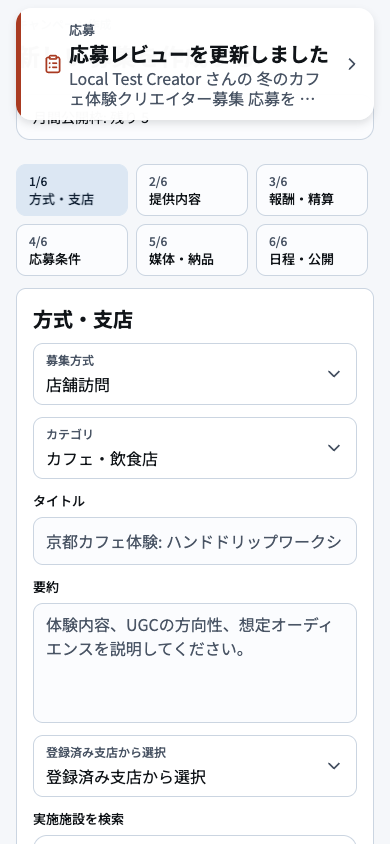
- 1Creation stepsCheck the current stage and remaining stages, and verify saved state before moving backward.
- 2Current fieldsComplete required fields and double-check the units used for dates, amounts, and capacity.
- 3Format-specific termsEnter only the conditions required by the selected visit, delivery, or participation format.
- 4Save and continueSave before continuing, click once, and wait for the completion state to appear.
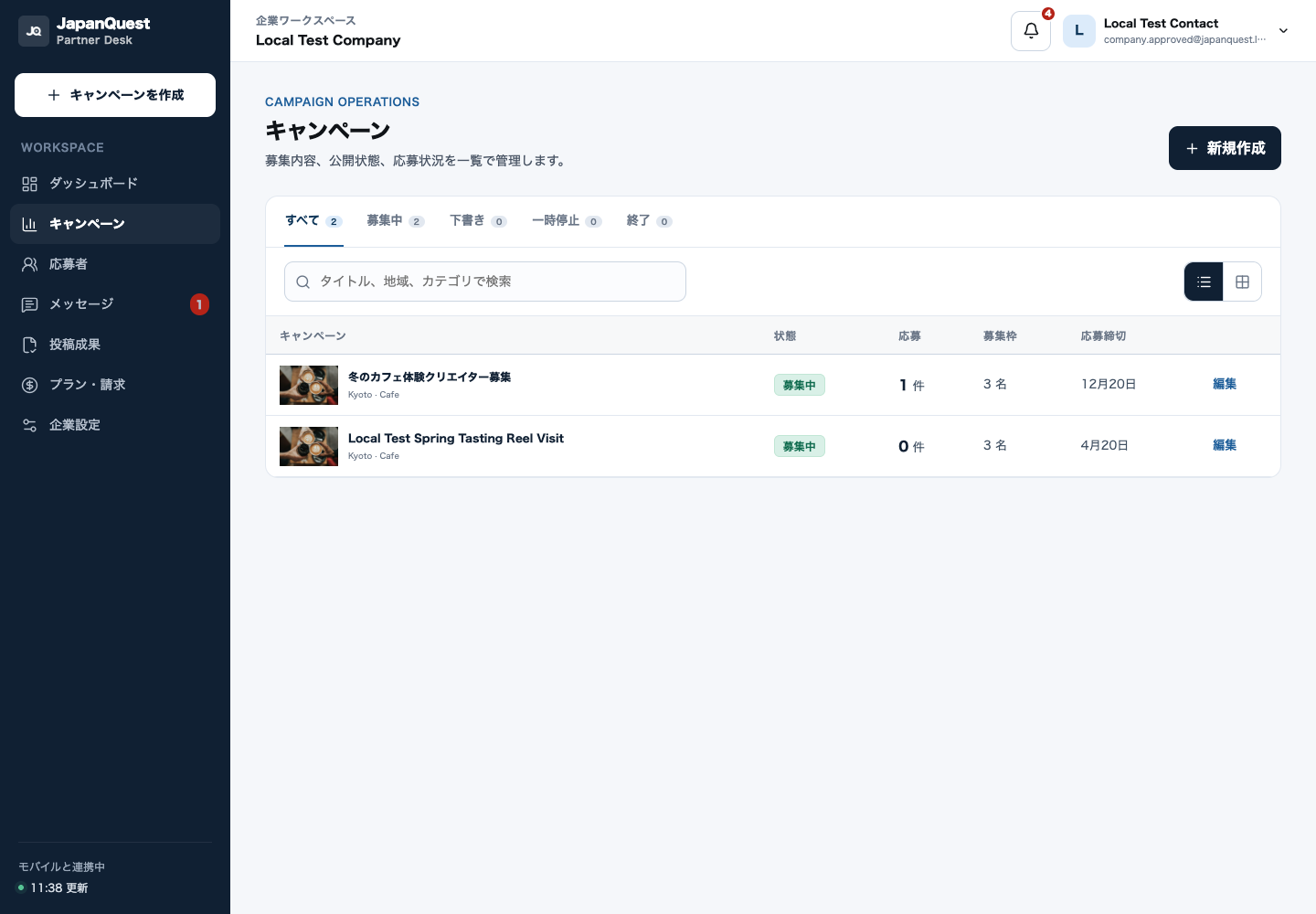
- 1Status tabsSwitch between Draft, In Review, Published, and Ended to focus the list.
- 2Search and filtersSearch by name or operator and narrow results by date and status filters.
- 3Campaign row and stateReview recruitment dates, applicant count, and publication state before opening an action.
- 4Create newCreate a campaign after checking business verification and the remaining publication quota.
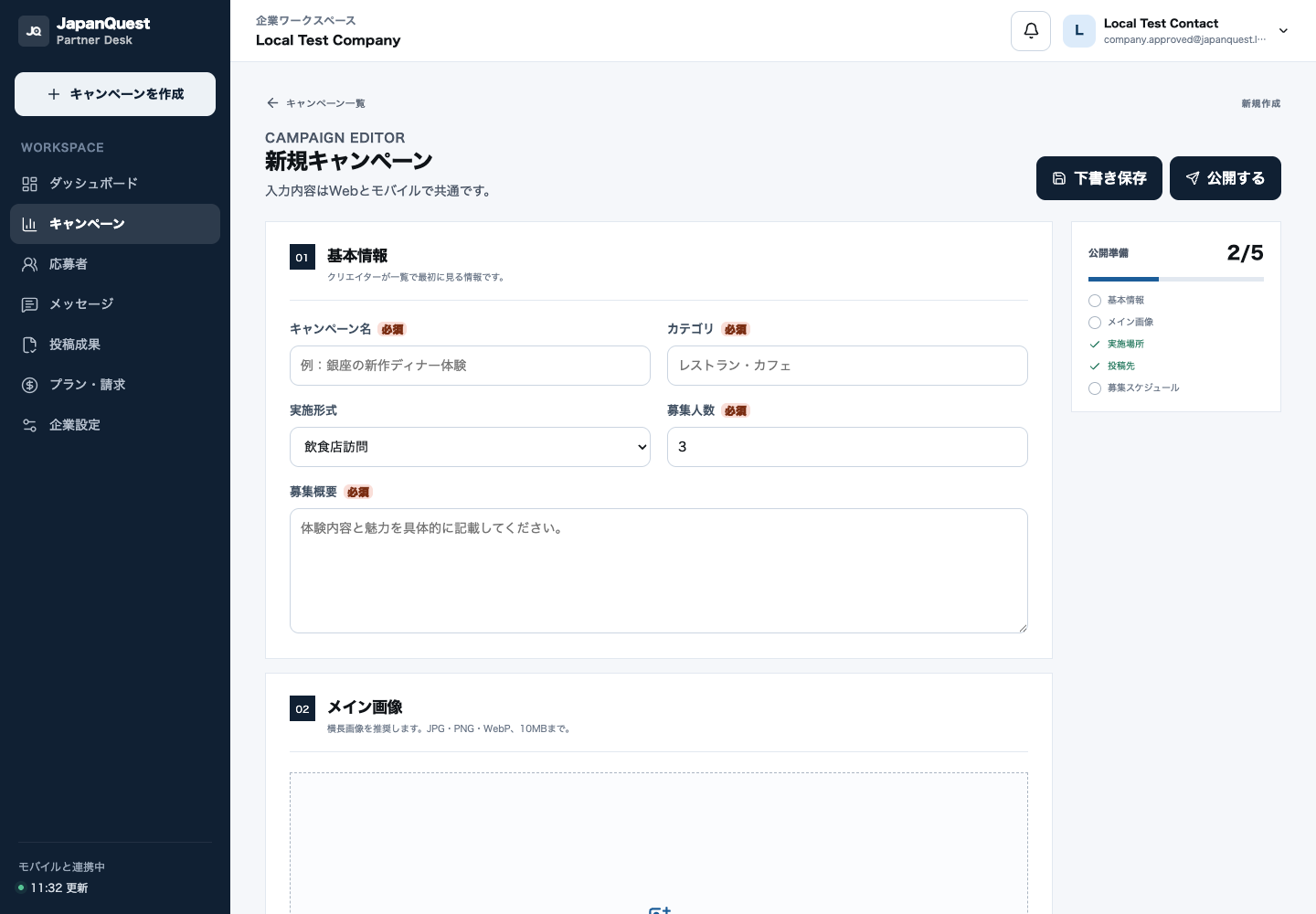
- 1Save draft and publishSave work as a draft and publish only after required content and review conditions are complete.
- 2Basic informationWrite the title, venue, recruitment period, and format so the listing cannot be misunderstood.
- 3Sections and completionUse completion indicators to find missing sections and move directly to the unfinished item.
- 4Images and detailed termsMake images, benefits, reward, eligibility, and posting requirements match actual operations.