 JapanQuest
Before you start
- Complete required identity, phone, and social-account checks.
- Review campaign and direct-payment terms and choose feasible times.
Steps
- 1
Open the application
Read the full detail page and confirm applications are still available before opening the form.
- 2
Choose a schedule
Select a fixed slot, or enter a date and start/end time when scheduling is negotiated.
- 3
Write your motivation
Explain your audience, content idea, and fit with this campaign. Avoid a generic one-line answer.
- 4
Acknowledge direct payment
Confirm that the company pays you directly and JapanQuest does not hold, transfer, or guarantee compensation.
- 5
Review and submit once
Check campaign, schedule, motivation, and social account. Submit once and wait for confirmation.
- 6
Track it in Applications
Watch Applied, Reviewing, Confirmation requested, Accepted, Rejected, and Completed status and notifications.
You are done when
The campaign appears in Applications with an Applied or Reviewing state.
Checklist
- Schedule is feasible
- Motivation is campaign-specific
- Direct-payment terms are understood
- No duplicate submission was made
Screen guide
Screens use test data for explanation. Labels may differ by app version and account state.
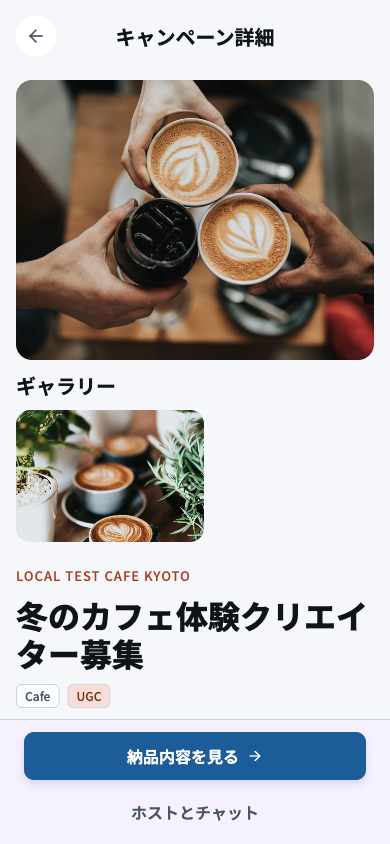
- 1Company, venue, and openingCheck company, venue, recruitment period, and activity date to confirm you can participate.
- 2Benefits and rewardReview the benefits, reward amount, direct-payment method, and agreed payment date.
- 3Eligibility and deliverablesCheck eligibility, required social network, format, ad disclosure, and submission deadline one by one.
- 4Apply actionRead every condition before applying and confirm the campaign is still open and not full.
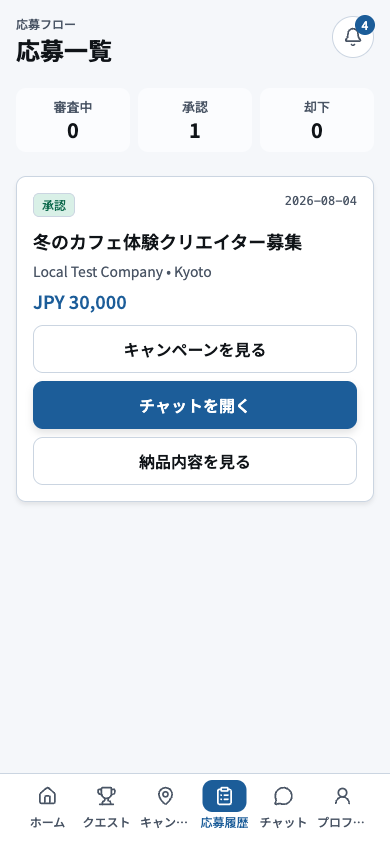
- 1Status filterFilter by Applied, In Review, Selected, or Completed to focus the list.
- 2Application cardVerify campaign, company, date, and current state before opening an application.
- 3Schedule, chat, and deliverable actionsUse the action shown for the current state: schedule response, chat, or deliverable submission.
- 4Bottom navigationBefore leaving, check for unread or time-sensitive actions on the application.